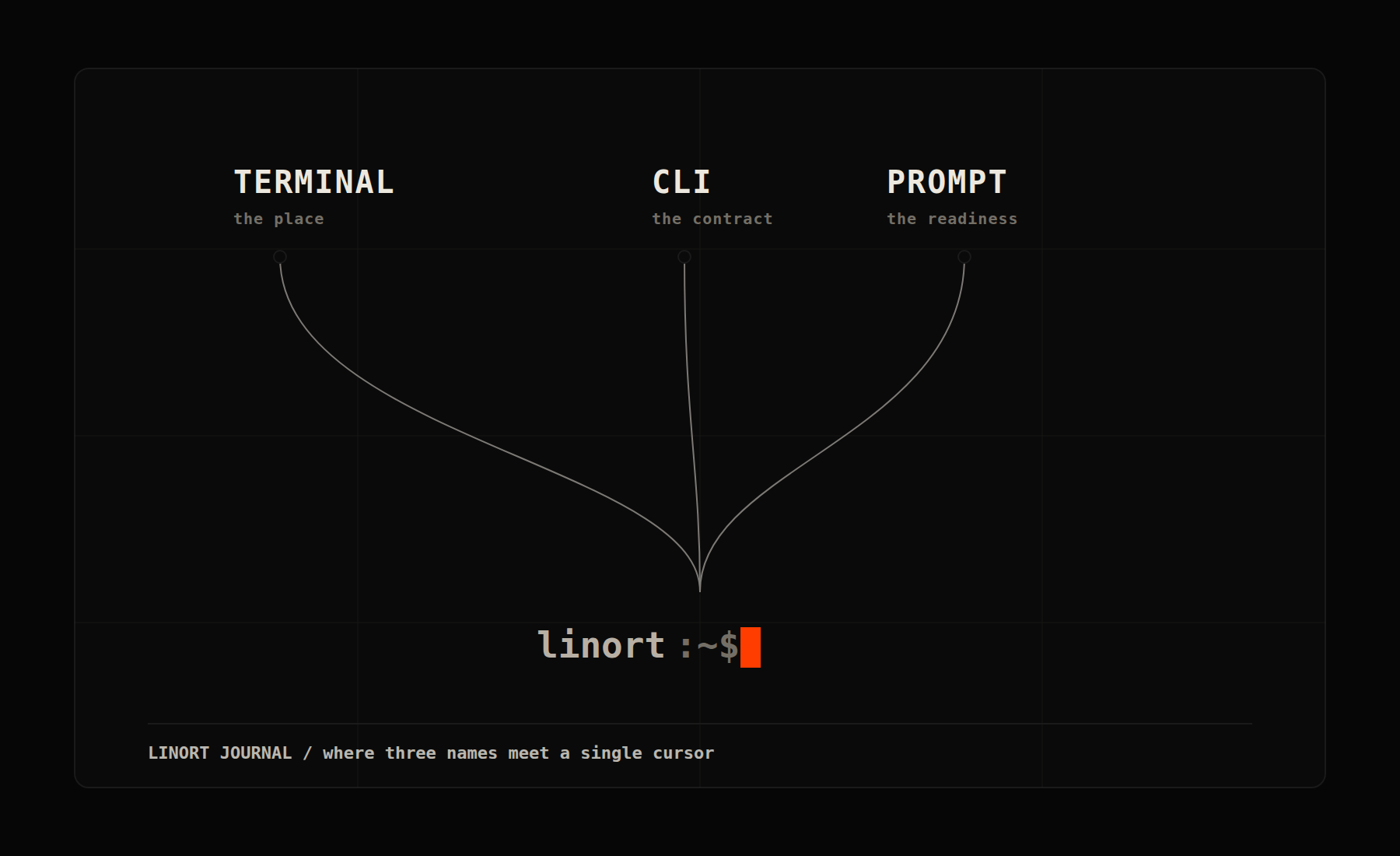
A blinking line that felt like a locked door.
The first time a terminal opened in front of me, I closed it. A black rectangle, a few words I did not write, and a small block of light blinking at the end. It felt like a door with no handle. I went back to clicking buttons, because buttons at least tell you what they do.
It took me longer than I would like to admit to understand what that blinking line actually was. It was not a test. It was an invitation. The machine had finished whatever it was doing and was now saying, plainly: your turn.
This post is the explanation I wish someone had given me on that first day. Not a list of commands — those come later, and they are easy. The harder thing, and the more useful one, is understanding why people use three different words for what looks like one black screen: terminal, CLI, and command prompt. They are not synonyms by accident. Each word remembers a different part of the same history, and once you can hear the difference, the door opens.
Why one thing collected three names.
When something genuinely useful sticks around for fifty years, it gets named more than once — usually by people standing in different places, describing what they see from where they stand.
The command line is exactly that kind of survivor. One person names the object in front of them. Another names the way of speaking to it. A third names the moment it is ready to listen. All three are looking at the same doorway. They just disagree, harmlessly, about what to call it.
So let’s take the three names one at a time, in the order they entered the world.
Terminal — the place.
“Terminal” is the oldest word, and it is the most physical. Before screens, a terminal was a real machine you sat at: often a teletype, a keyboard wired to a printer, connected by a long cable to a expensive central computer in another room. You were at the terminal of the wire — the end point, the terminus. The word is the same root as a bus terminal or an airport terminal: the place where the line ends and you get on or off.
The computer was shared and far away. Your terminal was simply where you stood to reach it.
Those typewriter-and-paper machines are gone, but the word stayed. Today a “terminal” is a program — a terminal emulator — that pretends to be that old endpoint so the software written for it still works. When you open Terminal on a Mac, GNOME Terminal on Ubuntu, or Termux on a phone, you are opening a modern stand-in for a fifty-year-old piece of furniture.
So when someone says terminal, hear: the place where I stand to talk to the machine.
CLI — the contract.
“CLI” stands for command-line interface, and it answers a different question: not where you stand, but how the program agrees to be spoken to.
Software can offer you its capabilities in more than one way. A GUI — a graphical user interface — hands you buttons, menus, and windows. A CLI hands you a language: you type a command, the program reads it, does the work, and writes back. Same program, possibly; two different interfaces to it.
This is the part beginners most often miss, so it is worth saying slowly. The CLI is not the black screen. The CLI is the agreement that you will give instructions as typed commands instead of clicks. git, npm, and an AI coding tool like Codex CLI all “have a CLI” — meaning each one exposes what it can do through commands rather than buttons.
There is a quieter member of this family worth naming now, because it confuses everyone: the shell. The shell is the specific program that actually reads your command line, figures out what you meant, and runs it — Bash, zsh, and PowerShell are shells. The terminal is the place; the shell is the thing inside it that listens and interprets. You type into the terminal, but you are really talking to the shell.
So when someone says CLI, hear: the deal that this tool speaks in typed commands.
Command prompt — the readiness.
The third name is the smallest and, to me, the most beautiful. The command prompt is the little bit of text the shell prints to tell you it is ready and waiting — often a $, a %, or a >, sometimes with your name and folder in front of it:
founder@server:~/company$To prompt someone, in plain English, is to nudge them to speak. That is exactly what this text does. It is the machine clearing its throat. Everything before the prompt is the system’s turn; everything after it is yours. The blinking block — the cursor — marks the precise spot where your words will appear.
There is a small trap here. On Windows, “Command Prompt” is also the proper name of an actual application (cmd.exe). So “command prompt” means two things depending on context: the readiness signal that every shell prints, and one particular Microsoft program named after it. Both meanings are correct. Knowing they are different is what keeps you from getting lost.
So when someone says command prompt, hear: the signal that it is now my turn.
Where the three names diverge.
Lined up, the distinction is clean — and once you see it, you cannot unsee it:
- The terminal is the place — the window or app you open.
- The CLI is the contract — the agreement that a tool speaks in typed commands.
- The command prompt is the moment — the text that says the system is ready for you.
- The shell, quietly underneath, is the listener — the program that reads and runs what you type.
A beginner who can say “I opened a terminal, my shell showed a command prompt, and I used the git CLI” is no longer staring at a locked door. They are describing a room they understand.
Where the three names converge.
Here is the part that took me years to feel rather than just know.
Walk far enough into any of the three words and you arrive at the same place: the blinking cursor. The terminal exists to show it to you. The CLI exists to give it a language. The prompt exists to announce that it is ready. The cursor is where place, language, and readiness collapse into a single point of light.
And that point of light is powerful for one specific reason: it makes your work explicit. A click happens and then disappears — it leaves no trace you can reread, repeat, or hand to someone else. A typed command is a sentence. It can be saved, copied, corrected, repeated exactly, audited later, pasted into a note, or handed to a teammate who runs it and gets the same result. The cursor is the place where a fleeting action becomes a durable instruction.
That is the whole reason serious builders keep coming back to the command line, and why it now matters even more: when you direct an AI coding agent, you are not poking buttons — you are writing instructions that can become a repeatable process. The doorway that once felt like a locked screen turns out to be the most honest interface a computer offers. It does exactly, and only, what you say. The discipline it asks for is the same discipline that turns scattered effort into an operation.
Learn each surface, one peculiarity at a time.
The fastest way to get comfortable is to meet the command line on whatever machine you already own, and learn the one thing that makes that surface different. Each link below is a doorway into one terminal and its peculiarities — pick the one in front of you and start there.
- The shell (Bash) — Before any specific machine, learn the program doing the listening. Bash is the default shell on most Linux systems and the grammar most tutorials assume. Peculiarity: it is the language layer, the same whether you reach it from a laptop or a phone. → GNU Bash Reference Manual
- Ubuntu / Linux — The friendliest place to learn the command line on purpose, with a beginner walkthrough written by the people who make Ubuntu. Peculiarity: package management with
apt, where installing software is itself a command. → The Linux command line for beginners (Ubuntu) - Apple Terminal (macOS) — Already installed on every Mac, now using
zshas its shell by default. Peculiarity: Unix underneath a polished desktop, so the same commands you learn here work on most servers. → Terminal User Guide (Apple Support) - Windows: Command Prompt — The classic
cmd.exe, the app actually named “Command Prompt.” Peculiarity: its command vocabulary (dir,copy,cd) differs from Unix, and modern Windows pairs it with PowerShell and Windows Terminal. → Windows commands reference (Microsoft Learn) - Termux (Android) — Turns a phone into a genuine Linux-style terminal, no root required. Peculiarity: its own package manager,
pkg, and the surprising fact that your pocket can become a real control surface. → Termux Wiki - tmux — Not a terminal but a multiplexer: it keeps sessions alive on a server so your work survives a dropped connection, and lets you reattach later from another device. Peculiarity: one keyboard prefix unlocks splits, tabs, and detach. → tmux Wiki
When you are ready to give that work a permanent home — a server that holds your sessions, files, and history so the same operation is reachable from a laptop or a phone — the VPS and Termux path is the next doorway.
Try the cursor once.
Reading about a prompt is not the same as answering one. If you have a terminal within reach, open it, wait for the prompt, and type a single honest question to the machine. The point is not the command. The point is the feeling of the turn passing to you.
founder@machine:~$ whoami
founder
founder@machine:~$ pwd
/home/founder
founder@machine:~$ echo "the cursor was waiting for me the whole time"
the cursor was waiting for me the whole time
The screen is no longer a locked door. It is a place, a language, and a readiness — meeting at one blinking line that has been waiting, patiently, for you to take your turn.